Discover, Review, Enjoy — Byte by Byte

Tag: guide

Emby – Convert SSL Certificate for Use in Emby (OpenSSL Guide)

This guide explains how to convert a certificate from a provider (such as OVH or Namecheap) into a .pfx file for use in Emby, and how to verify that your private key, CSR, and certificate all match correctly.

This is useful when:

  • You purchased an SSL certificate from a provider
  • You generated your own CSR
  • Emby requires a .pfx certificate file
  • You want to verify everything matches before importing

1. Convert Certificate to PFX Format

Emby requires a .pfx (PKCS#12) certificate file.

Run the following command:

openssl pkcs12 -export -out mgn.pfx \
-inkey mgn_ovh.key \
-in mgn_ovh.crt \
-certfile mgn_ovh.ca-bundle

File Explanation

  • mgn_ovh.key → Your private key
  • mgn_ovh.crt → Certificate issued by provider
  • mgn_ovh.ca-bundle → Intermediate certificate bundle
  • mgn.pfx → Output file used in Emby

You will be prompted to create a password.
This password will be required when importing into Emby.


2. Troubleshooting: Verify the Key, CSR, and Certificate Match

If Emby refuses the certificate, or conversion fails, ensure that:

  • The private key matches the CSR
  • The certificate was issued for the correct key
  • The CA bundle matches the certificate

All modulus hashes must match.


Confirm the Private Key

openssl rsa -noout -modulus -in mgn_ovh.key | openssl md5

Example output:

MD5(stdin)= xxxxxxxxxxxxxxxxx

Check the Original CSR

openssl req -noout -modulus -in request.csr | openssl md5

The MD5 hash must match the private key output above.


Check the Provider Certificate

openssl x509 -noout -modulus -in mgn_ovh.crt | openssl md5

This must also match the previous two outputs.

If all three hashes match → your key, CSR, and certificate are correctly paired.


3. Verify the Certificate Chain

Ensure the certificate is properly signed by the CA:

openssl verify -CAfile mgn_ovh.ca-bundle mgn_ovh.crt

Expected output:

mgn_ovh.crt: OK

If it returns OK, the certificate chain is valid.


4. Import Into Emby

In Emby:

Dashboard → Network → HTTPS → Certificate Path

Upload the .pfx file and enter the password created during export.

Restart Emby after importing.


Common Issues

  • Key does not match certificate → wrong private key used
  • CSR regenerated after certificate purchase
  • Incorrect CA bundle file
  • Missing intermediate certificates

Always confirm modulus values match before attempting conversion.


Tested On

  • Debian-based systems
  • OpenSSL 1.1 / 3.x
  • Emby Server (Linux)
  • Certificates from OVH / Namecheap
Linux – Cloudflare Dynamic DNS Update Script (Bash)

This guide shows how to create a simple Bash script that automatically updates a Cloudflare DNS A record when your public IP address changes.

This is ideal for:

  • Home lab environments
  • Self-hosted services
  • Proxmox / VPN endpoints
  • ISP connections with dynamic IP addresses

Instead of using a third-party Dynamic DNS provider, this script updates Cloudflare directly via its API.


How It Works

The script:

  1. Fetches your current public IP address
  2. Queries Cloudflare for the existing DNS record
  3. Compares the two
  4. Updates the DNS record only if the IP has changed
  5. Logs all activity with timestamps

This prevents unnecessary API calls and keeps logs clean.


Requirements

Install required tools:

apt install -y curl jq

You will also need:

  • A Cloudflare account
  • Your Zone ID
  • Your DNS Record ID
  • An API key or token

The Script

Create the file:

nano /root/cloudflare-ddns.sh

Paste the following:

#!/bin/bash# Variables
ZONE_ID="YOUR_ZONE_ID"
RECORD_ID="YOUR_RECORD_ID"
AUTH_EMAIL="your@email.com"
AUTH_KEY="YOUR_GLOBAL_API_KEY"
DOMAIN="yourdomain.com"
LOG_FILE="/root/ddns.log"# Fetch the current public IP
CURRENT_IP=$(curl -s https://api.ipify.org)# Get the existing IP from Cloudflare
EXISTING_IP=$(curl -s -X GET "https://api.cloudflare.com/client/v4/zones/$ZONE_ID/dns_records/$RECORD_ID" \
-H "Content-Type: application/json" \
-H "X-Auth-Email: $AUTH_EMAIL" \
-H "X-Auth-Key: $AUTH_KEY" | jq -r '.result.content')# Timestamp
TIMESTAMP=$(date +"%Y-%m-%d %H:%M:%S")# Compare and update if needed
if [ "$CURRENT_IP" != "$EXISTING_IP" ]; then
echo "$TIMESTAMP - IP changed from $EXISTING_IP to $CURRENT_IP. Updating record..." | tee -a "$LOG_FILE" RESPONSE=$(curl -s -X PUT "https://api.cloudflare.com/client/v4/zones/$ZONE_ID/dns_records/$RECORD_ID" \
-H "Content-Type: application/json" \
-H "X-Auth-Email: $AUTH_EMAIL" \
-H "X-Auth-Key: $AUTH_KEY" \
--data '{"type":"A","name":"'"$DOMAIN"'","content":"'"$CURRENT_IP"'","ttl":1,"proxied":false}') if echo "$RESPONSE" | grep -q '"success":true'; then
echo "$TIMESTAMP - DNS record updated successfully." | tee -a "$LOG_FILE"
else
echo "$TIMESTAMP - Update failed. Response: $RESPONSE" | tee -a "$LOG_FILE"
fi
else
echo "$TIMESTAMP - IP unchanged ($CURRENT_IP). No update required." | tee -a "$LOG_FILE"
fi

Save and make executable:

chmod +x /root/cloudflare-ddns.sh

Finding Your Cloudflare IDs

Zone ID

Cloudflare Dashboard → Domain → Overview → Right Sidebar → Zone ID

Record ID

Run:

curl -X GET "https://api.cloudflare.com/client/v4/zones/YOUR_ZONE_ID/dns_records" \
-H "X-Auth-Email: your@email.com" \
-H "X-Auth-Key: YOUR_GLOBAL_API_KEY" \
-H "Content-Type: application/json"

Find the record for your domain and copy the "id" value.


Run the Script Manually

/root/cloudflare-ddns.sh

Check the log:

cat /root/ddns.log

Automate with Cron

Edit root crontab:

crontab -e

Run every 5 minutes:

*/5 * * * * /root/cloudflare-ddns.sh

Security Recommendation (Important)

Instead of using your Global API Key, it is strongly recommended to create a Cloudflare API Token with limited permissions:

Permissions required:

  • Zone → DNS → Edit
  • Zone → Zone → Read

This reduces risk if the script is ever exposed.


Optional Improvements

You could enhance this script by:

  • Sending a Pushover notification on IP change
  • Logging to syslog instead of a flat file
  • Supporting IPv6 (AAAA record)
  • Adding error handling if Cloudflare API is unreachable

Use Cases

This script is useful for:

  • Hosting services behind dynamic residential IP
  • WireGuard endpoints
  • Self-hosted dashboards
  • Proxmox remote access
  • Home VPN servers

Tested On

  • Debian 12
  • Proxmox VE 8
  • Cloudflare DNS (A records)

Proxmox – Network Bond Setup (Active-Standby)

This guide explains how to configure an active-backup (active-standby) network bond in Proxmox using two physical NICs. This setup provides network redundancy without requiring LACP or special switch configuration.

In active-backup mode, only one interface is active at a time. If the primary NIC fails, the secondary automatically takes over.

⚠️ This guide assumes Proxmox VE 7.x or 8.x using ifupdown2 (default on modern installs).


1. Edit the Network Interfaces File

Open the Proxmox network configuration file:

nano /etc/network/interfaces

2. Configure the Bond Interface (bond0)

Add or modify your configuration as follows:

auto lo
iface lo inet loopback# Bonding interface
auto bond0
iface bond0 inet manual
bond-slaves eno1 eno2
bond-mode active-backup
bond-miimon 100
bond-primary eno1

Explanation

  • bond-slaves eno1 eno2
    Replace with your actual NIC names (check using ip link)
  • bond-mode active-backup
    Enables failover mode (no LACP required)
  • bond-miimon 100
    Checks link state every 100ms
  • bond-primary eno1
    Optional — sets preferred primary interface

3. Create the Proxmox Bridge (vmbr0)

Attach the bond to a Proxmox bridge for VM and container networking:

# Virtual bridge using the bonded interface
auto vmbr0
iface vmbr0 inet static
address 192.168.1.100/24
gateway 192.168.1.1
bridge-ports bond0
bridge-stp off
bridge-fd 0

Replace:

  • 192.168.1.100/24 → Your Proxmox host IP
  • 192.168.1.1 → Your gateway

4. Apply the Network Configuration

Instead of rebooting, safely reload networking:

ifreload -a

⚠️ If working remotely over SSH, be cautious — misconfiguration may disconnect you.


5. Verify the Bond Status

Check bond details:

cat /proc/net/bonding/bond0

You should see:

  • Bonding Mode: active-backup
  • Currently Active Slave: eno1 (or eno2 if failover occurred)
  • MII Status: up

To test failover:

Unplug the primary NIC and confirm the secondary becomes active.


How Active-Backup Bonding Works

  • Only one NIC carries traffic at a time
  • Automatic failover if link drops
  • No switch configuration required
  • Ideal for homelabs and unmanaged switches

This is different from LACP (802.3ad), which requires switch support and provides load balancing.


Optional: Identify Your Network Interfaces

If unsure of interface names:

ip link

Common names include:

  • eno1
  • eno2
  • enp3s0
  • enp4s0

Use those values in bond-slaves.


Troubleshooting Tips

If the bond does not come up:

  • Ensure both NICs are connected
  • Confirm correct interface names
  • Check for indentation errors in /etc/network/interfaces
  • Restart networking if necessary:
systemctl restart networking

Tested On

  • Proxmox VE 8.x
  • Dual NIC Intel-based systems
  • Standard home / unmanaged switches

Proxmox – Enable Intel iGPU Hardware Acceleration

This guide explains how to enable Intel integrated GPU (iGPU) hardware acceleration on a Proxmox host and pass it through to an LXC container (such as Emby) using VAAPI.

Tested on:

  • Proxmox VE 7.x / 8.x
  • Intel N100 / modern Intel iGPUs
  • Debian-based LXC containers

1. Install Intel GPU Drivers on the Proxmox Host

Proxmox already includes the kernel driver. You only need the user-space packages.

Update the Host

apt update && apt full-upgrade -y

Install Intel Media Packages

apt install -y \
intel-media-va-driver \
i965-va-driver \
vainfo \
intel-gpu-tools

On newer Proxmox kernels, intel-media-va-driver (iHD driver) is the important package.
i965-va-driver can remain installed for compatibility.


2. Verify the iGPU Is Detected

Check that the DRM device exists:

ls -l /dev/dri

You should see:

/dev/dri/card0
/dev/dri/renderD128

If you do not see these, check BIOS settings:

  • iGPU enabled
  • Primary display set to Auto or iGPU
  • No headless-disable options enabled

3. Test VAAPI on the Host

Run:

vainfo

Expected output should reference:

  • Intel iHD driver
  • H.264
  • HEVC
  • VP9
  • AV1 decode (supported on N100)

If vainfo works → the host configuration is complete.


4. Prepare the LXC Container for GPU Access

Edit your container configuration:

nano /etc/pve/lxc/<CTID>.conf

Add the following lines:

# Allow GPU devices
lxc.cgroup2.devices.allow: c 226:* rwm# Bind mount DRM devices
lxc.mount.entry: /dev/dri dev/dri none bind,optional,create=dir# Required for iGPU access
lxc.apparmor.profile: unconfined
lxc.cap.drop:

For trusted internal containers (like Emby), this does not meaningfully weaken host security.

Restart the container after saving.


5. Install Intel Drivers Inside the Container

Enter the LXC and update:

apt update && apt upgrade -y

Install VAAPI support:

apt install -y \
intel-media-va-driver \
i965-va-driver \
vainfo \
ffmpeg

6. Verify GPU Access Inside the Container

Check:

ls -l /dev/dri

You should see:

card0
renderD128

Test VAAPI:

vainfo

If this works → GPU passthrough is successful.


7. Configure Emby for Hardware Transcoding

In Emby Admin:

Dashboard → Playback → Transcoding

Set:

  • Enable hardware acceleration
  • Acceleration API: VAAPI
  • Enable hardware decoding
  • Enable hardware encoding
  • Enable tone mapping (if using HDR → SDR)

Optional (recommended):

Set the transcode temp directory to:

/tmp/emby-transcode

Or use a fast NVMe-backed dataset.


8. Confirm Hardware Transcoding Is Active

Start a file that forces a transcode (not direct play).

Then on the Proxmox host run:

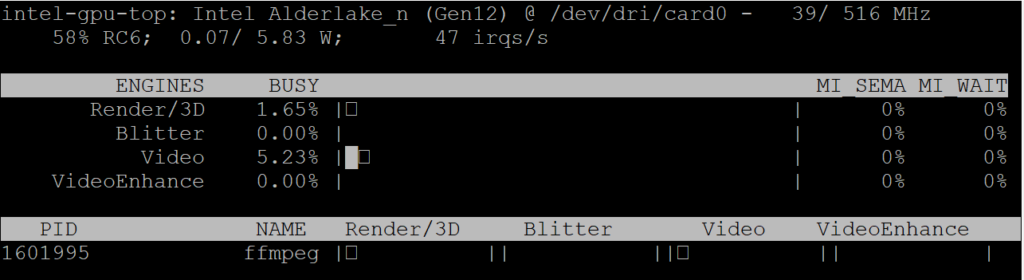
intel_gpu_top

You should see activity under:

  • Video
  • Render

CPU usage should remain low.

If GPU usage increases → hardware acceleration is working correctly.

Proxmox – How to Mount a Synology iSCSI LUN to Proxmox

This guide explains how to connect a Synology iSCSI LUN to a Proxmox host and mount it for use with containers (LXC).

⚠️ Important: If using a standard filesystem such as ext4, only one node should mount the LUN at a time. Mounting the same LUN on multiple nodes without a cluster filesystem can cause data corruption.


1) Discover the iSCSI Target

Run the discovery command from your Proxmox node:

iscsiadm -m discovery -t sendtargets -p NAS_IP

Example:

iscsiadm -m discovery -t sendtargets -p 192.168.x.x

You should see output similar to:

192.168.x.x:3260,1 iqn.YYYY-MM.com.synology:target-name

2) Get the Proxmox Initiator Name

You’ll need to add this to the Allow List in Synology DSM.

cat /etc/iscsi/initiatorname.iscsi

Output will look like:

InitiatorName=iqn.YYYY-MM.org.debian:unique-id

Copy everything from iqn onwards and add it to your Synology iSCSI target permissions.


3) Log In to the iSCSI Target

iscsiadm -m node --login

If successful, the session will establish without errors.

To log out from another node (if required):

iscsiadm -m node --logout

4) Confirm the Disk Appears

Check block devices:

lsblk

Or confirm the by-path entry:

ls -l /dev/disk/by-path | grep iscsi

You should see something similar to:

ip-192.168.x.x:3260-iscsi-iqn...-lun-1 -> ../../sdb

5) Format the LUN (If Required)

If this is a new LUN:

mkfs.ext4 /dev/sdX

Replace sdX with the correct device.


6) Create a Mount Point

mkdir -p /mnt/storage

7) Add to /etc/fstab

Edit:

nano /etc/fstab

Add:

/dev/disk/by-path/ip-NAS_IP:3260-iscsi-iqn.TARGET_NAME-lun-1  /mnt/storage  ext4  _netdev,noatime,discard  0  2

Reload systemd and mount:

systemctl daemon-reload
mount -a

8) Ensure iSCSI Auto-Starts on Boot

iscsiadm -m node --op update -n node.startup -v automatic

Verify:

iscsiadm -m node

9) Add Mount to an LXC Container

Edit the container config file:

nano /etc/pve/lxc/CTID.conf

Add at the bottom:

mp0: /mnt/storage,mp=/mnt/storage,backup=0

Restart the container after saving.


Optional Security Recommendation

Consider enabling CHAP authentication on your Synology iSCSI target to prevent unauthorised access, even on internal networks.

Emby – Running Emby service as different user

Step 1 – Stop The Emby-Server Service

systemctl stop emby-server

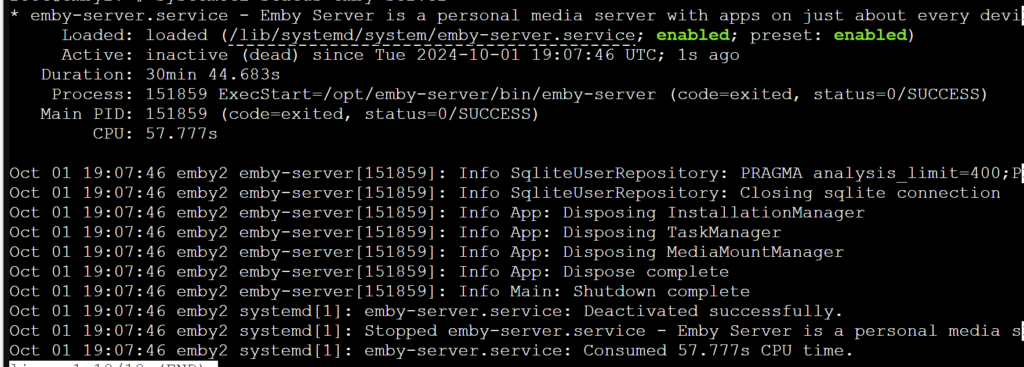
Step 2 – Check The Emby-Server Service have safely stopped

systemctl status emby-server

important – ensure the emby server has stopped and shows inactive (dead)

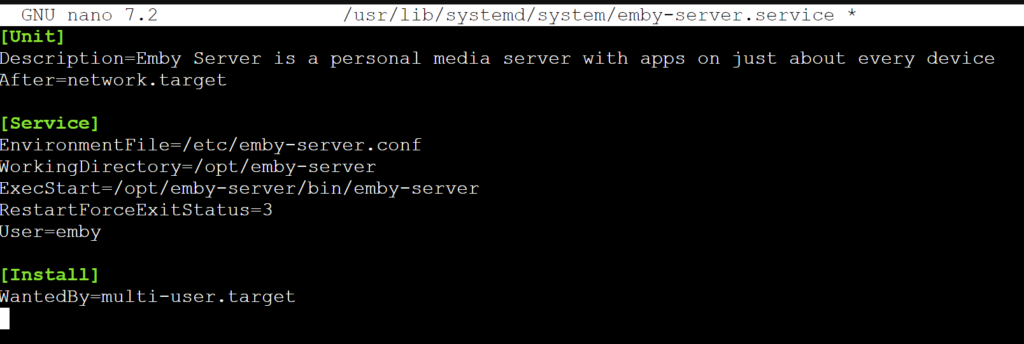
Step 3 – Amend the emby server service files
nano /usr/lib/systemd/system/emby-server.service

important – Replace “newuser” with the user you would like to use.

Change ‘User=emby’ to ‘User=newuser’

Save emby-server.service CTRL + O then Enter

Step 4 – change emby folder’s permission
chown -R newuser:newuser /var/lib/emby/

Step 5 – reload and check the emby server service

sudo systemctl daemon-reload

systemctl start emby-server
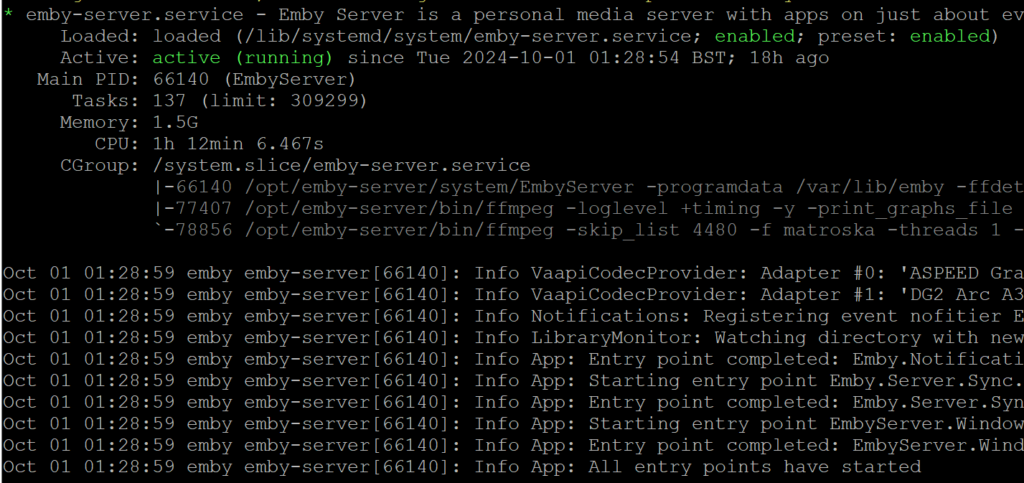
systemctl status emby-server

Checking the status of emby you should see active (Running) shown in green below.

Proxmox – Emby Intel GPU passthrough

Important: This is for use with Debian 12 (BookWorm) / Proxmox (8.2.7).

This guide is for the setup of an Intel iGPU or dedicated GPU passthrough on Proxmox between an LXC / CT linux system.

Run these commands on both the proxmox host and Emby CT. I have this method working on successfully on both a N100 iGPU and Sparkle Intel Arc A310 ECO

Step 1 – Adding driver download sources
nano /etc/apt/sources.list

add the following

non-free firmwares
deb http://deb.debian.org/debian bookworm non-free-firmware

non-free drivers and components
deb http://deb.debian.org/debian bookworm non-free

Step 2 – Installing the GPU Driver

Install the following
apt update && apt install intel-media-va-driver-non-free intel-gpu-tools

Step 3 – Confirm GPU’s major number’s for fb0 and renderD128

Important: Note down your major numbers from your output my example numbers may not be the same as yours and if this are incorrect the gpu will not work.

cd /dev

Use the following command to list all files and folders in the current directory

ls -lah

Make a note of the numbers in bold for fb0 (If it exists)

crw-rw---- 1 root video 29, 0 Aug 30 21:19 fb0

Navigate to the dri folder using the following command

cd /dev/dri

ls -lah

Make a note of the the number in bold for renderD128

crwxrwxrwx 1 root render 226, 128 Aug 30 21:19 renderD128

Step 4 – Amend Proxmox CT/LXC config to allow access to the GPU

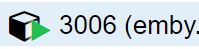
Now we will add the numbers that were noted down to our CT config on proxmox for Emby – Important amend the command below with your CT’s ID number shown the proxmox webgui (Example Below) Mine is 3006

Now open your CT’s config files on your Proxmox host.

nano /etc/pve/lxc/3006.conf

Add the following lines to the file and save using CTRL + O and then enter.
lxc.cgroup2.devices.allow: c 29:* rwm
lxc.cgroup2.devices.allow: c 226:* rwm
lxc.mount.entry: /dev/fb0 dev/fb0 none bind,optional,create=file
lxc.mount.entry: /dev/dri dev/dri none bind,optional,create=dir
lxc.apparmor.profile: unconfined

Step 5 – Adding Persistent GPU Permissions

Important: Giving 777 permissions to your GPU is not considered best practice from a security standpoint. While this approach works, there are more secure methods you can follow. However, I understand the risks and accept them on my system. do this at your own risk…

Adding Persistent GPU Permissions on proxmox host so the GPU is accessible to the CT after reboot.

nano /etc/udev/rules.d/99-renderD128-permissions.rules
KERNEL=="renderD128", MODE="0777"

udevadm control --reload-rules

udevadm trigger

How to Test?

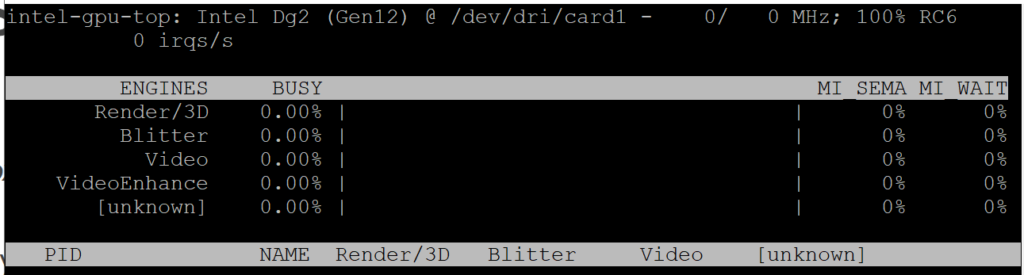
Run the following command on your proxmox shell (This is basically task manager for your GPU)

intel_gpu_top

Step 6 – LXC/CT GPU Driver installation

Repeat Steps 1 and 2 inside your LXC/CT/Emby Shell

How to Test GPU in Emby?

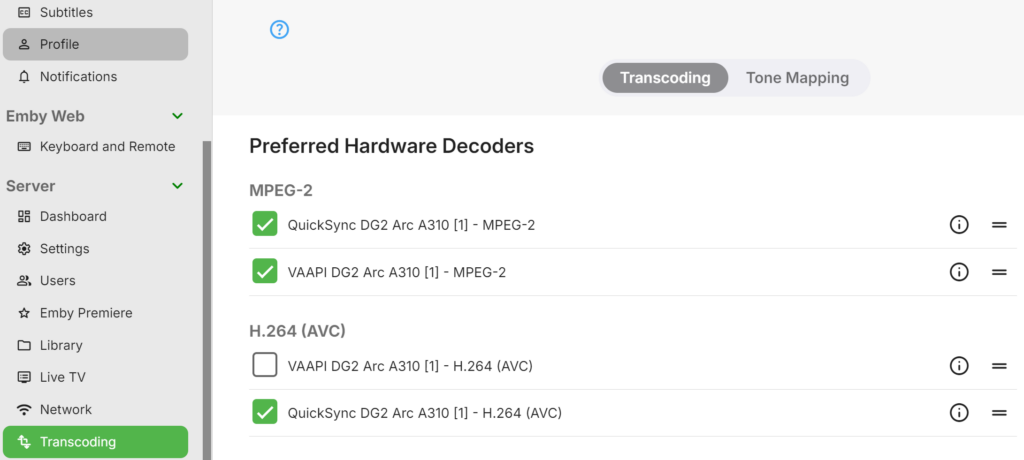
Login to Emby and navigate on the admin webpage to Server > Transcoding. If you see your GPU and a list of Hardware Decoders its likely working. Test forcing something to Trancode by changing the bitrate and monitor the CPU usage and using intel_gpu_top to see if there is any ffmpeg processes running on the GPU

If your not seeing anything on this page I suggest giving your server a little nap (aka, a reboot) see if that makes the GPU driver jumps into life.

Proxmox – Persistent GPU Permission

Important: Giving 777 permissions to your GPU is not considered best practice from a security standpoint. While this approach works, there are more secure methods you can follow. However, I understand the risks and accept them on my system. do this at your own risk…

If you are having issues with GPU transcoding in emby and your GPU permission keep changing after reboot use the following commands to fix the permission.

Run the following command inside your proxmox shell.

nano /etc/udev/rules.d/99-renderD128-permissions.rules

Add the following to the file

KERNEL=="renderD128", MODE="0777"

CTRL + O then Enter to save the changes to the file.

Now run the following command

udevadm control --reload-rules

Run the following command

udevadm trigger

© 2026 bytesmith17

Theme by Anders NorénUp ↑